
How to choose the best Mac productivity apps for voice capture and follow-through
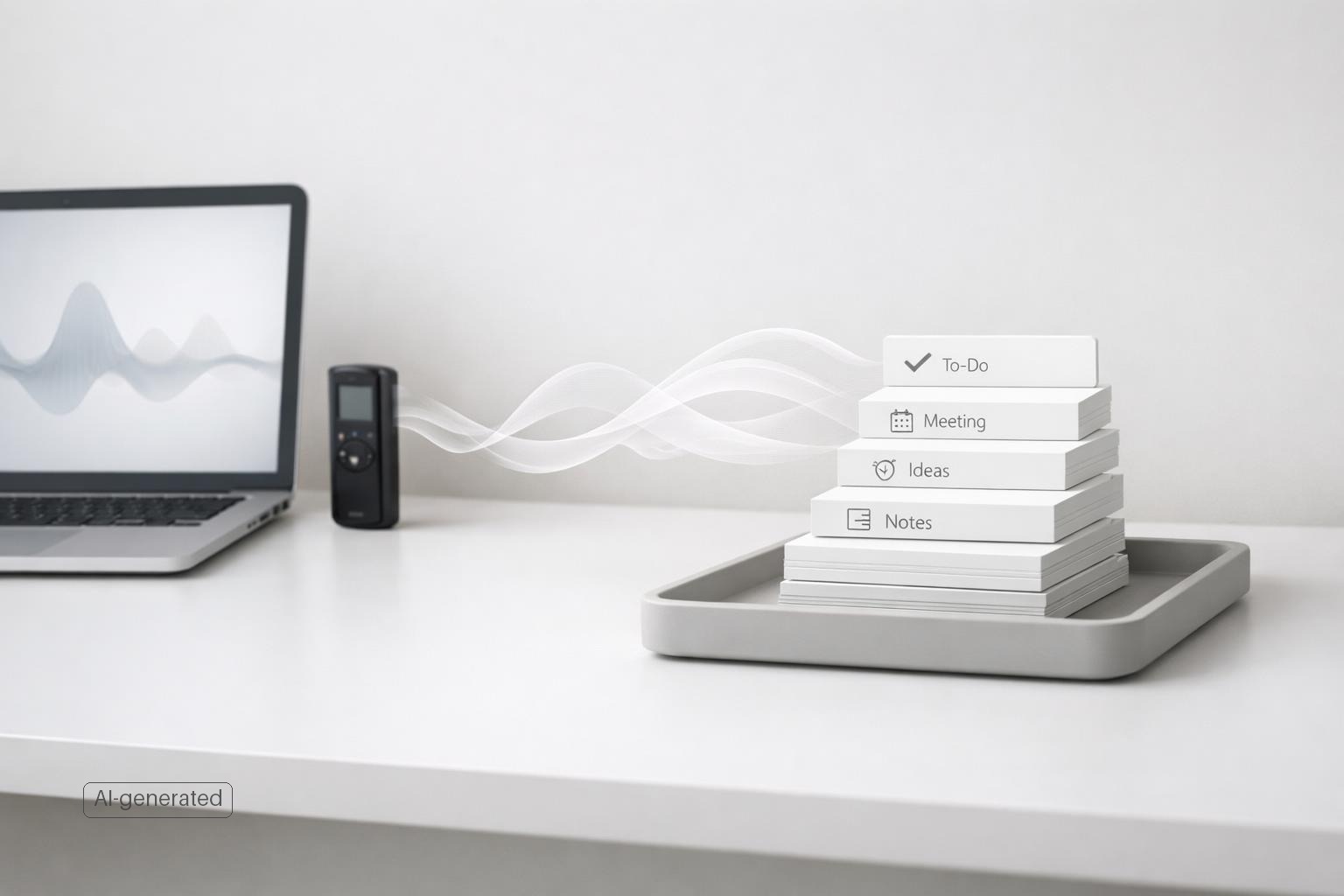
If you’re comparing the best Mac productivity apps, focus on the full capture-to-follow-through loop instead of dictation alone.
Quick answer: The best Mac productivity app for voice capture and follow-through is not the one with the smartest speech recognition in isolation. It’s the one that lets you capture ideas with minimal friction, turns them into usable tasks or notes, and makes it easy to review, prioritize, and actually complete them later.
TL;DR
- Choose for the full loop, not just dictation: capture, clarify, schedule, review, and execute.
- On Mac, native integrations with Reminders, Calendar, Notes, Shortcuts, and system notifications matter a lot.
- Voice works best for quick capture, but most people still need a visual step to verify, edit, and organize complex tasks.
- Fewer tools usually beats a stacked setup of separate inbox, notes, reminders, and planner apps.
- If you manage work and personal life in one place, look for an app organized by life areas or contexts, not just flat task lists.
What should a Mac voice-capture productivity app actually do?
A lot of apps advertise voice input. That alone does not make them good productivity tools.
For most people, voice capture solves one narrow problem: getting thoughts out of your head quickly. That matters, especially when you’re walking, in transit, between meetings, or deep in work and don’t want to break focus.
A useful Mac productivity app should handle three layers well:
-
Fast input You should be able to speak something messy like, “Follow up with Maya next Thursday about the contract and add notes from today’s call,” and get something close to a usable task.
-
Structured output The app should help separate title, date, reminders, project, tags, or context. If everything lands as one blob of text, you haven’t saved much time.
-
Reliable follow-through The app needs a place where captured items reappear at the right time, in the right view, with enough context to be completed.
This is where many tools fail. They are excellent at capture and weak at retrieval. You end up with a graveyard of voice notes, transcripts, or inbox items.
On Mac specifically, built-in apps already cover parts of this workflow. Apple highlights Reminders, Notes, Calendar, and Shortcuts as core productivity tools on Mac (Use Apple Intelligence to stay organized and get things done on Mac - Apple Support). Apple also documents ways to create reminders, calendar events, and shortcuts from natural-language descriptions using Apple Intelligence, though availability varies by language and region.
How do you compare apps without getting distracted by feature lists?
The easiest mistake is choosing based on the biggest feature grid. The better approach is to compare friction.
A productivity app becomes your real system only if it works during low-energy moments: when you are rushed, tired, distracted, or switching contexts. That means judging apps by what happens in practice:
Ask these five comparison questions
How many steps does capture take? Can you trigger voice entry quickly from Mac, menu bar, keyboard shortcut, or companion device? The best app is often the one that reduces the capture moment to one action.
Does spoken input become an actionable item? A transcript is not a task. Good apps either parse structure automatically or make it very easy to assign due date, reminder, project, and priority immediately.
Can you see tasks in context? Calendar visibility matters because tasks compete with fixed commitments. Native and third-party Mac apps increasingly combine scheduling context with task planning.
What happens after capture? Is there an inbox, Kanban board, today view, or review flow? Follow-through depends on resurfacing and prioritization, not just collection.
How much system upkeep does it require? Harvard Business Review has argued that most people should adopt the smallest number of tools necessary to work efficiently (The 8 Digital Productivity Tools Everyone Should Adopt). That is practical advice, not minimalism for its own sake. Every extra app adds routing decisions, duplicate notifications, and review debt.
Quick shortlist: Which Mac apps should you test first?
If you want a fast first-pass shortlist, compare a native baseline against a few stronger planning options. The scores below use this article’s five criteria on a simple 1–5 scale: capture speed, structured output, reminder/project support, Apple ecosystem fit, and low upkeep. They are directional, not lab measurements, but they give you a practical starting point.
| App | Best for | Price | Capture | Structure | Reminders / projects | Apple fit | Low upkeep | Main tradeoff |
|---|---|---|---|---|---|---|---|---|
| Apple Reminders | Simple personal reminders | Free with Apple devices | 4 | 3 | 4 | 5 | 5 | Great baseline, but limited for deeper planning |
| malife | One system for life areas, tasks, focus, and journaling | Free for now | 4 | 5 | 5 | 5 | 4 | Better for holistic planning than lightweight lists |
| Things 3 | Clean task management for Apple users | One-time purchase | 4 | 4 | 4 | 5 | 5 | Elegant, but less oriented to voice-first capture and life areas |
| Todoist | Cross-platform capture and shared task workflows | Free + paid tiers | 4 | 4 | 5 | 4 | 4 | Flexible, but can become list-heavy without a strong review habit |
| Notion | Notes + project workspace in one tool | Free + paid tiers | 2 | 4 | 3 | 3 | 2 | Powerful, but usually higher upkeep for simple task follow-through |
A useful rule of thumb: start with Reminders if you mainly need quick personal capture, shortlist malife if you want work and personal life managed together, try Things 3 if you want a polished Apple task app, and look at Todoist if cross-platform access matters more than staying fully native. If your voice input often happens in noisy places or you need offline reliability, test the exact same phrases in each app on your own Mac, because dictation quality can vary by microphone, environment, language, and whether transcription depends on local or cloud processing.
This is why “best” is personal. If you need lightweight personal reminders, Apple Reminders may be enough. If you need quick-add on Mac, cross-device sync, native notifications, and stronger planning views, a dedicated app may be better . If your life is fragmented across work, home, health, and side projects, a life-management app will usually outperform a simple to-do list.
Which criteria matter most for follow-through after voice capture?
Once capture works, follow-through becomes the real differentiator.
Voice is excellent for reducing mental friction at the moment an idea appears. It is much less reliable as a complete execution system.
Here are the criteria that matter most after the idea is captured:
Does the app give you a clean inbox and review workflow?
Every captured item needs a default landing zone. If tasks scatter into notes, reminders, transcripts, and drafts, you will stop trusting the system.
A good inbox should let you rapidly clarify: - What the task actually is - Whether it belongs to a project - When it should reappear - Whether it needs a reminder, not just a due date
Without a review step, voice capture just creates future sorting work.
Can it organize across life areas, not just projects?
Projects are useful, but most people don’t live only in projects. They juggle work, family, health, finances, errands, and long-term personal goals at the same time. An app that can organize by broader life areas often makes captured tasks easier to place and review later.
That matters because follow-through is partly a prioritization problem. If all tasks sit in one master list, urgent work tends to crowd out everything else.
Does it support execution, not just storage?
Look for views and tools that help you finish tasks: - Today or upcoming views - Kanban or status-based workflow - Focus timer or session support - Reminders with clear notifications - Calendar context
The goal is not a prettier list. It is an app that helps you decide what to do now.
Is the app reliable enough to become your default?
Trust is the hidden feature. You need confidence that captured tasks will sync, notify, and remain easy to find on Mac and iPhone. Reviewers of Mac and iPhone to-do apps consistently treat native feel, syncing, shortcuts, widgets, notifications, and quick add as core differentiators, not bonus features (The 6 best to do list apps for Mac in 2026 | Zapier).
If an app makes you wonder where something went, follow-through will collapse.
When should you use Apple’s built-in tools vs a dedicated app?
For some readers, the honest answer is: start with Apple’s built-in stack.
Apple already gives Mac users a capable baseline: Calendar for time commitments, Notes for general capture, Reminders for task management, and Shortcuts for automation (Be productive with Calendar, Notes, Reminders, and Shortcuts - Apple Support). For many people, that may be enough. Apple Reminders in particular is often praised for covering the basics well without extra cost or complexity.
You probably do not need a dedicated app if: - Your tasks are relatively simple - You mostly need personal reminders - You are happy using Notes for rough capture and Reminders for actions - You do not need advanced review, planning, or life-area organization
You probably do need a dedicated app if: - Your voice capture often turns into multi-part work - You need one system for personal and professional responsibilities - You want captured thoughts to become structured tasks quickly - You need better review views than a plain list - You want focus and reflection in the same workflow
This is where a tool like malife makes more sense than a standard to-do list. If your problem is not “I need somewhere to put tasks,” but “I need one place to manage the moving parts of my life,” then the evaluation criteria change. A life-management app can combine capture, tasks, reminders, focus, and journaling in a way that matches how responsibilities actually show up.
The key is not to upgrade tools too early. Start by mapping your actual failure point: - Forgetting tasks? - Not processing captured items? - Losing balance across life areas? - Failing to focus when it is time to execute?
Choose the app that fixes that bottleneck, not the app with the most AI features.
How should you test a Mac productivity app before committing?
Do not decide from screenshots, app store copy, or a comparison chart. Test with your own mess.
A good trial lasts about a week and uses real inputs you would normally capture in a hurry. For example: - “Email Jordan the revised invoice Friday morning.” - “Book dentist, check insurance, ask about available evenings.” - “Idea for article: compare voice capture with inbox triage.” - “Pick up prescription after gym.” - “Review Q4 budget and send notes to cofounder.”
During the test, pay attention to four things.
First, capture speed. How quickly can you get the thought into the app from Mac? If you hesitate or switch apps, friction is already too high.
Second, cleanup effort. How much editing does the voice result need before it becomes useful? Some correction is normal. Constant repair is a warning sign.
Third, resurfacing. Did the app bring tasks back when needed through reminders, today views, or review screens? This is the heart of follow-through.
Fourth, planning calm. After a few days, did the app reduce mental clutter or increase it? That is the most honest metric. HBR’s broader point about creating a workflow that works for you still applies here: the right system is the one you can sustain, not the one with the most customizable architecture.
A simple scorecard helps. Rate each app from 1 to 5 on: - Capture friction - Structure quality - Reminder reliability - Review workflow - Focus support - Fit with your Apple setup
If two apps tie, choose the one with fewer moving parts.
Bottom line
Choose the best Mac productivity app for voice capture and follow-through by testing whether it closes the whole loop: speak, structure, review, and complete. If you only need simple reminders, Apple’s built-in tools may be enough. If you need one calm system for tasks across work and personal life, with better organization and execution support, a dedicated app is worth it.
If you want a native Apple workflow that combines AI-powered capture, task management, reminders, focus, and reflection in one place, download the app and see whether malife fits your real week better than a basic to-do list.
For the best Mac productivity apps, choose the one that closes the loop from capture to review without adding mental clutter.