
7-point dictation app for iPhone checklist
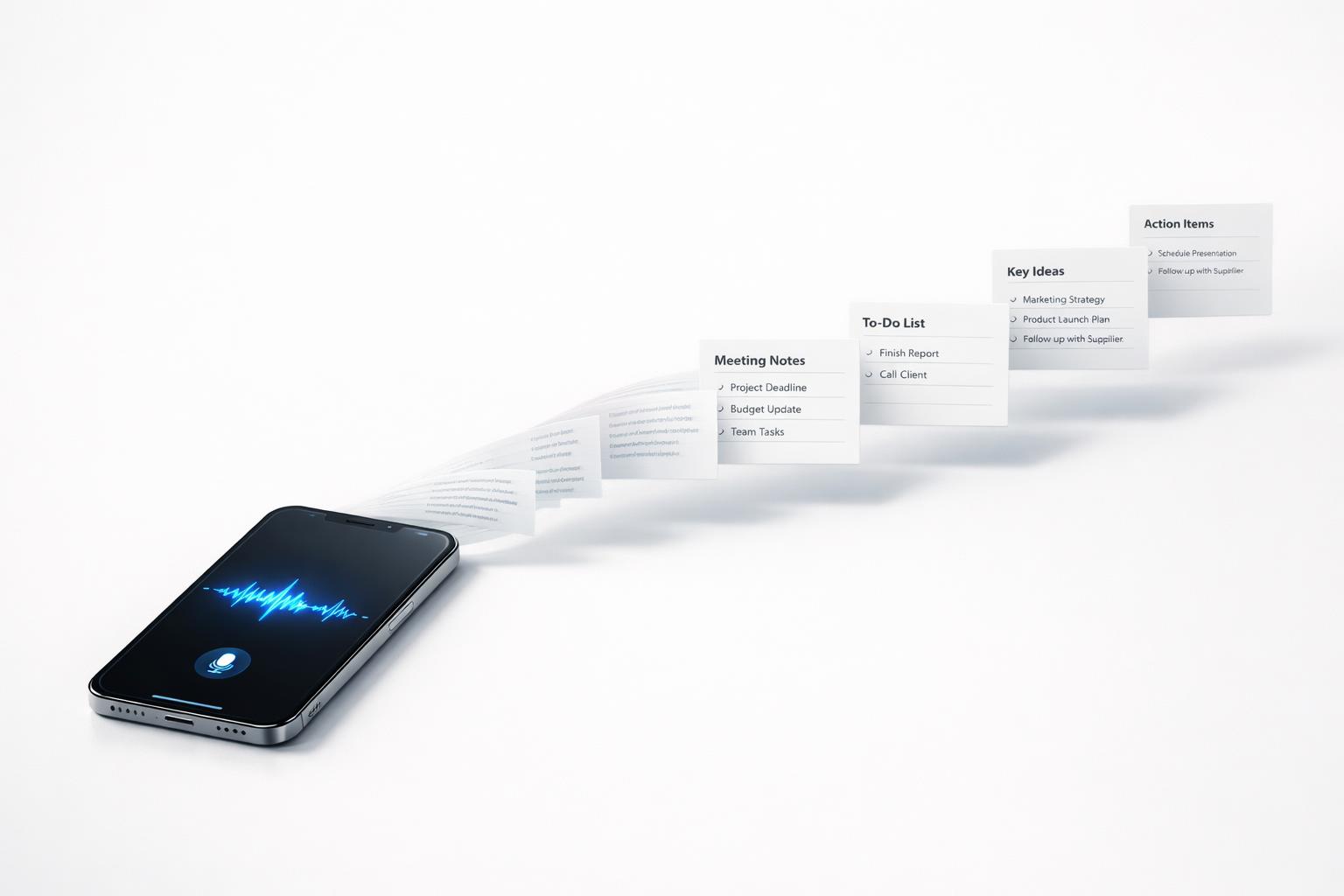
Quick answer: A good dictation app for iPhone should do more than turn speech into text. If you want something you’ll actually rely on, check seven things before you install it: transcription accuracy, speed, editing controls, export/share options, privacy, task or workflow integration, and whether it fits your real use case—quick notes, professional dictation, or turning spoken thoughts into actionable tasks. The right app depends less on feature count and more on what happens after you stop talking.
TL;DR
- If you only need occasional voice-to-text, iPhone’s built-in dictation is often enough.
- If you dictate reports, case notes, or long recordings, you’ll likely need stronger editing, file handling, and security features.
- If your real problem is capturing ideas and turning them into tasks, a dictation app alone may not solve it.
- Use this 7-point checklist to test any app in 10 minutes before committing your notes and workflow to it.
What should a dictation app on iPhone actually help you do?
Most people search for a “dictation app” when they mean one of three different things:
-
Voice typing into text fields You tap the microphone on the iPhone keyboard and speak. This is the simplest option and already built into iPhone.
-
Recording and transcribing longer speech This is closer to professional dictation: reports, meeting notes, interviews, observations, or long-form thoughts. Apps in this category often promise higher accuracy, document editing, and sharing tools.
-
Speaking tasks into a productivity system Here, the goal is not just text capture. It’s converting “Remind me to call Sam Thursday and send the invoice” into a usable next action inside your planning system. Some productivity apps have added voice capture specifically for task creation (Dictation App-Dictate Anywhere - App Store - Apple).
That distinction matters because the “best” app for one job can be weak at another. A lawyer or clinician may care about audio quality, encryption, and file delivery. A student may care about quick note capture. A busy founder may care about whether spoken input becomes organized tasks instead of a pile of transcripts.
Apple also offers voice-based controls beyond dictation. Voice Control can let you interact with iPhone, edit text, and perform commands by voice. Useful, but separate from choosing a dictation app.
So before comparing apps, ask one blunt question: Do I need speech-to-text, professional dictation, or voice capture that leads to action?
The 7-point checklist
Here’s the practical checklist. If an app fails two or three of these for your use case, keep looking.
1. Is the transcription accurate enough for your vocabulary?
Generic dictation works fine for everyday language. It breaks down when you use names, jargon, numbers, addresses, or structured details. Some apps position themselves as professional dictation tools for fields like medicine, law, journalism, or consulting. That doesn’t guarantee perfection, but it signals a different target user.
Test accuracy with: - Full names - Dates and times - Lists - Domain-specific words - Punctuation by voice
Do not trust a marketing claim like “99% accurate” without testing your own speech, accent, and environment. Accuracy is personal and context-dependent.
2. Is it fast enough to stay out of your way?
Latency matters more than people think. If the app takes too long to process speech, you’ll stop using it for quick capture. Good dictation on iPhone should feel immediate for short input, whether you’re speaking a note, a paragraph, or a task.
Try two tests: - A 10-second thought while walking - A 90-second spoken dump with multiple ideas
If the app forces too many taps before and after recording, it’s not really fast, even if transcription itself is decent.
3. Can you fix mistakes without friction?
Every dictation app makes errors. The real question is how easy they are to correct. Apple’s Voice Control documentation shows that voice can be used not only to dictate but also to edit text and interact with screen elements. That matters because cleanup often decides whether voice input saves time or creates more work.
Look for: - Easy cursor placement - Quick re-dictation - Text selection/editing support - Punctuation insertion - Minimal interface clutter
If editing is painful, the app is only good for rough capture, not finished output.
4. Can you export, share, or send the result where work happens?
This is where many apps disappoint. The transcript may be fine, but now it’s trapped. Dedicated dictation apps often emphasize editing and sharing documents from anywhere. Professional apps may also offer multiple transmission options for recordings and dictations ([Calling all our iOS users! Introducing Voice Recognition for iOS - Create tasks with voice recordings!
- Product Updates - Asana Forum].
Check whether you can: - Copy text cleanly - Export audio if needed - Share to email, files, or cloud storage - Send to the app you already use for notes or tasks
If you work across iPhone and Mac, this step matters even more. A dictation app that creates isolated text blobs is fine for occasional use, but weak as part of a real system.
5. Does it match your privacy and security needs?
If you’re dictating sensitive material, privacy is not optional. Some apps explicitly promote encryption and security standards. Others focus on convenience and say less about handling sensitive audio or text.
You don’t need enterprise-grade security for a grocery list. You may need it for client notes, patient-adjacent documentation, legal observations, finance details, or personal journal entries.
At minimum, check: - Whether the app mentions encryption - Whether audio is stored, uploaded, or both - Whether transcripts can be deleted - Whether you’re comfortable with the app’s handling of sensitive content
If the app is vague here and your content is sensitive, assume caution.
6. Does it integrate with tasks, reminders, or your planning workflow?
This is the most overlooked point. Dictation is easy. Follow-through is hard.
If you capture a great spoken note but still have to manually sort it into projects, deadlines, and reminders, the app may only move your clutter upstream. Voice capture is most useful when it reduces the distance between thought and action.
Task platforms have added voice-based task creation on iOS because users want fast capture on the go. Apple’s broader ecosystem also supports voice workflows through Siri and Shortcuts for tasks and events.
For many people, this is the decision point: - Need polished transcripts? Choose a dictation-first app. - Need spoken ideas turned into next actions? Choose a productivity app with strong voice capture.
If you live on iPhone and Mac and want one system across work and personal life, task integration may matter more than premium transcription features.
7. Is it the right tool for your specific dictation style?
Not everyone dictates the same way. Your ideal app depends on which of these sounds like you:
- Quick capture user: “I just need to speak a note fast.”
- Long-form user: “I dictate paragraphs, reports, or detailed thoughts.”
- Professional documentation user: “I need reliability, file handling, and security.”
- Productivity user: “I want to brain-dump and have the result become organized actions.”
This is why app rankings are only partly useful. The built-in option may be enough for light use. A specialized app may be better for long-form or professional dictation. And if your bottleneck is execution, not transcription, a life-management app may be the better fit than a pure dictation app.
Which iPhone dictation apps fit which use case?
Use this as a fast reality check against the seven points above.
| App | Best for | Pricing | Offline | Languages/accents | Watch-outs |
|---|---|---|---|---|---|
| Apple built-in dictation | Quick voice typing in messages, notes, search, and form fields | Included with iPhone | Some on-device processing support varies by device/OS | Strong for mainstream everyday use; test your accent and multilingual switching yourself | Limited document workflow, fewer export controls |
| Apple Voice Memos + transcription | Recording longer thoughts or interviews, then reviewing text | Included | Recording works offline; transcription availability may vary | Good for simple capture, less tailored to structured dictation | Better for recordings than task capture |
| Otter | Meetings, lectures, and searchable transcripts | Free tier + paid plans | Typically cloud-based | Often used for multi-speaker and meeting contexts | Not ideal if you mainly need private offline capture or task creation |
| Dictate⁺ | Traditional dictation with editing and sharing tools | Paid/download details vary by region and version | Check current App Store listing | Check current language support | Better fit for dictation-first users than planning workflows |
| malife | Turning spoken thoughts into tasks, reminders, and organized follow-up | Free | Voice-processing details may depend on feature mode | Best tested with your real phrasing and life admin use cases | Not meant to replace specialist medical/legal dictation |
How to choose quickly: - Use Apple built-in dictation if you just want to speak into text fields. To enable it, go to Settings > General > Keyboard > Enable Dictation, then tap the microphone on the keyboard when typing. - Use a transcription app if you need long recordings, searchable transcripts, or document sharing. - Use a productivity app like malife if your real goal is turning “I need to remember this” into structured action across work and personal life (Top 7 voice to task app tools for faster capture).
How to test any iPhone dictation app in 10 minutes
You do not need a week-long trial to know whether a dictation app belongs in your workflow. Run this short test.
Minute 1–2: Quick note test
Say one sentence you’d normally capture on the move:
“Remind me to send the revised proposal to Jenna tomorrow at 10 and follow up Friday if there’s no reply.”
Check: - Did it get names and times right? - Can you use the result immediately?
Minute 3–4: Long thought test
Speak for 45–60 seconds without stopping. Include punctuation naturally if that matters to you.
Check: - Does the app keep up? - Does formatting hold together? - Is the transcript readable without heavy cleanup?
Minute 5–6: Correction test
Fix three errors.
Check: - Can you place the cursor easily? - Can you re-dictate part of the text? - Is correction faster than typing from scratch?
Minute 7–8: Workflow test
Now move the result where it needs to go.
Check: - Can you share it to email, notes, files, or your task app? - If it’s a task, can you add a date, reminder, or project without friction?
Minute 9–10: Reality check
Ask: - Would I trust this while walking, commuting, or between meetings? - Does this reduce mental load, or create another inbox of transcripts?
This short test usually reveals the truth faster than feature pages do.
When built-in iPhone dictation is enough—and when it isn’t
For many people, the best dictation feature is the one already on the phone. IPhone supports voice input directly from the keyboard, and Apple also provides Voice Control for broader hands-free interaction and text editing. If your needs are simple.
Built-in dictation is usually enough if you: - Send short messages - Capture quick notes - Fill text fields hands-free - Don’t need audio file handling - Don’t dictate sensitive or specialized documents often
A dedicated app is usually better if you: - Dictate longer passages regularly - Need better document management - Want stronger sharing/export features - Care about professional-grade audio workflow - Need security features clearly stated - Want speech tied to a larger task or planning system
This is also where “dictation app” and “productivity app” start to overlap. If your voice input is mostly about commitments, reminders, follow-ups, and life admin, raw transcription may not be your real need. You may need a place where spoken thoughts become structured tasks across areas like work, health, finances, and relationships.
That’s the practical difference between capturing words and capturing responsibility.
If your real goal is action, not transcripts
A lot of people install dictation apps hoping to feel less overwhelmed. Sometimes that works. Often it doesn’t, because the real issue isn’t capturing thoughts—it’s organizing and executing them.
If you constantly say things like: - “I need to remember this later” - “I’ll sort that out tonight” - “I’ve got too many things in my head”
Then a pure dictation app may only give you cleaner chaos.
That’s where a life-management workflow matters. Instead of treating speech as an isolated note, you want a system that can help turn spoken input into: - A task - A project item - A reminder - A follow-up - A reflection you can review later
This is especially useful for Apple users who want one environment across iPhone and Mac rather than separate tools for voice notes, reminders, and planning. A dedicated dictation app still makes sense for professional recording and transcription. But if you’re mostly dictating commitments, decisions, and personal admin, choose based on what happens after capture.
That’s also the strongest filter in this checklist: not “Can it transcribe?” but “Does it help me keep my life together?”
Bottom line
Use this checklist to judge dictation apps by outcome, not by feature lists. Start with this tighter filter:
- Quick voice typing: use built-in iPhone dictation first.
- Long recordings and transcripts: compare transcription apps on editing, export, privacy, price, and offline limits.
- Task capture and follow-through: choose a productivity system that turns speech into action.
If an app misses on accuracy, correction speed, export, or workflow fit, skip it. If your real need is managing responsibilities across life areas rather than collecting transcripts, download the app.