
Best practices for a native Mac task app for Apple power users
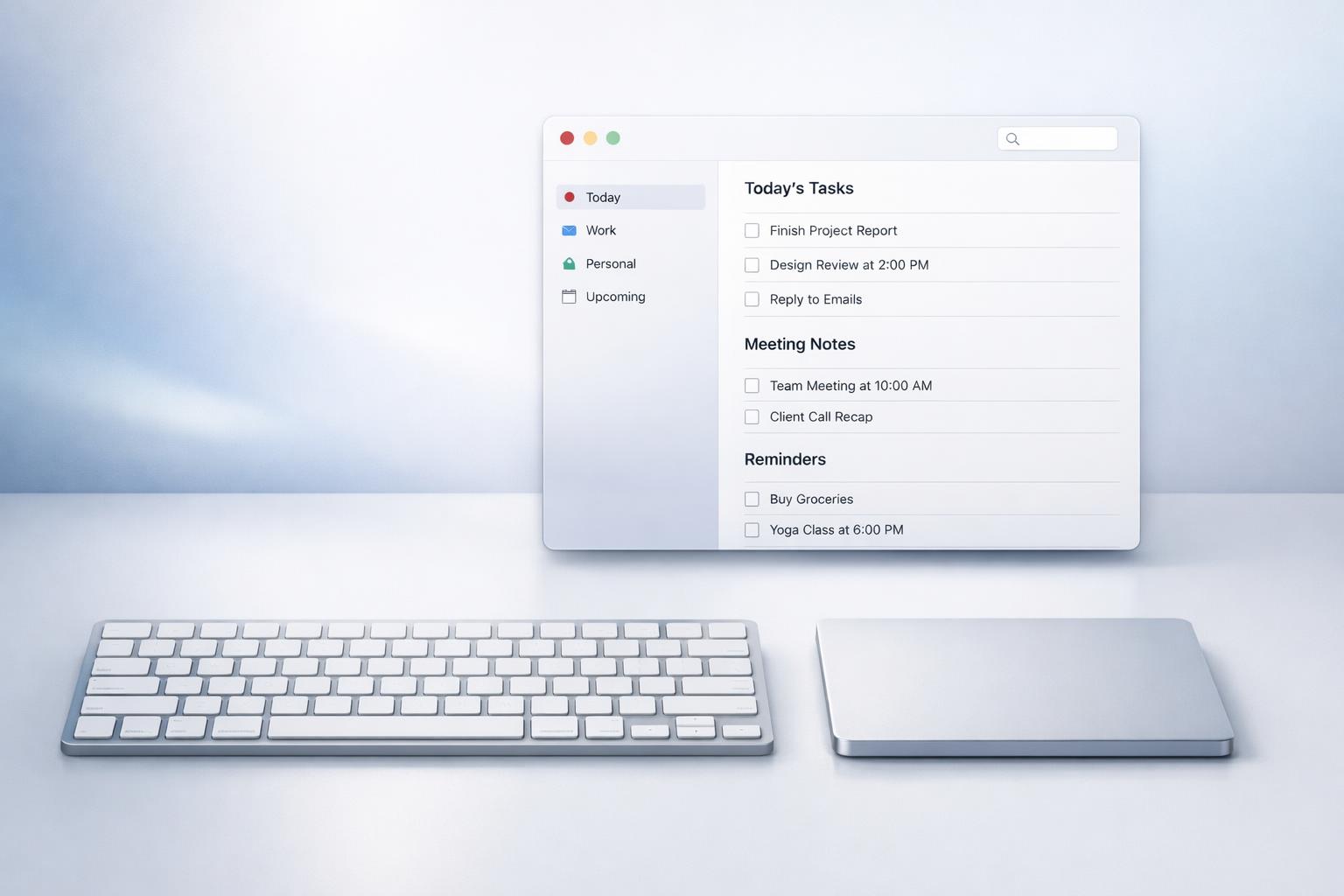
Quick answer: The best native Mac task app for Apple power users should feel like a real macOS app first and a task manager second: fast keyboard control, clear multiwindow behavior, reliable sync, low-friction capture, strong project structure, and enough planning depth to handle work and life in one place without becoming cluttered. If an app looks native but still forces web-app habits, hides key actions behind clicks, or breaks your flow between Mac and iPhone, it will frustrate power users quickly .
TL;DR
- Prioritize native Mac behaviors: keyboard shortcuts, drag-and-drop, multiple windows, menu bar support, and responsive performance.
- Choose a structure that scales: areas, projects, tasks, and subtasks matter more than flashy views.
- Reduce capture friction: quick add, natural-language entry, voice input, and contextual suggestions help because incomplete capture is where most systems fail.
- Execution beats storage: timeboxing, focus modes, and realistic “today” planning are better than endlessly growing task lists.
- For Apple users, the best app is the one that works natively across Mac and iPhone without making personal and professional commitments compete in separate silos.
What makes a native Mac task app actually good?
For Apple power users, “native” should mean more than “available on Mac.” It should mean the app behaves the way Mac software is supposed to behave: quick launch, immediate responsiveness, reliable drag-and-drop, solid keyboard navigation, proper window management, and an interface that respects the desktop rather than imitating a phone screen. Apple’s own macOS design guidance emphasizes the Mac’s spaciousness, flexibility, and use across multiple apps at once . That matters for task management, because planning on a Mac is rarely a one-screen activity .
A good native task app should let you review projects in one window, capture a task in another, and reference email, notes, or calendar side by side without feeling cramped. It should support standard Mac expectations: global search that feels instant, keyboard-first interaction, contextual menus, and predictable selection behavior. Even the small things matter to power users: whether Enter creates a task quickly, whether arrow keys move cleanly, whether batch editing exists, whether you can open several lists at once.
Speed is not cosmetic. It changes whether you trust the app for frequent use. Native Mac apps are often preferred because they feel at home on the desktop and avoid the heaviness some users associate with cross-platform wrappers (The 6 best to do list apps for Mac in 2026 | Zapier). That preference is partly subjective, but for a daily task manager, subjective comfort matters. If the app feels slow, cluttered, or alien to macOS conventions, power users will notice every hour.
Which features matter most for serious Apple users?
Power users usually do not need the most features. They need the right ones, well implemented.
First is structure. Tasks pile up fast when the app only offers one flat list. A better system has at least four levels of thinking: life areas, projects, tasks, and subtasks. Subtasks are not niche; Apple supports them directly in Reminders on Mac for multi-step work, though there are limitations depending on list type and account provider. That’s a useful benchmark. If Apple’s default app needs subtasks, a power-user app definitely does.
Second is flexible metadata. Dates, reminders, flags, tags, and recurring schedules matter because people do not manage all commitments the same way. Apple notes that quick-entry fields in Reminders can include date, location, tags, and a flag (Add or change reminders on Mac - Apple Support (IN)). A strong Mac task app should do at least that much, while keeping these attributes fast to add rather than burying them in inspector panels.
Third is capture. A great system fails if adding something takes too long. The best workflow is usually a combination of quick add, keyboard capture, and voice capture. Voice is especially useful for fleeting commitments, errands, and follow-ups when your hands are busy or your thought arrives faster than you can type. Research on smartphone voice assistants for task execution suggests users can complete multi-step tasks through conversational interfaces, though the quality of the experience depends heavily on how well the assistant maps to the app’s actual capabilities (GPTVoiceTasker: Advancing Multi-step Mobile Task Efficiency Through Dynamic Interface Exploration and Learning). That does not mean voice should replace typing. It means voice should be available as a low-friction front door.
Fourth is cross-device continuity. On Apple devices, users expect a task created on Mac to appear on iPhone and iPad quickly and reliably. If sync is shaky, the app stops being trusted.
How should a Mac task app support real planning, not just task storage?
The hardest part of task management is not collecting tasks. It is deciding what to do now without losing track of everything else.
That means a serious Mac task app should separate storage from execution. Storage is where everything lives: projects, someday items, recurring responsibilities, and reference tasks. Execution is a smaller layer: what matters today, this week, or in the current focus block. If the app turns every captured task into equal visual urgency, it becomes a guilt dashboard.
One best practice is to organize by life areas instead of only by projects or only by due date. This prevents work from swallowing everything else. If your app keeps health, admin, finances, family, and work in one system, you are less likely to overlook entire parts of your life. That is especially valuable for busy professionals who already have work tasks in email, meetings in calendar, and personal obligations in their head.
Another best practice is to make “today” deliberate. HBR’s argument for timeboxing is useful here: many people keep rolling tasks from one day to the next because they never translate lists into real planned time (Designing for macOS | Apple Developer Documentation). A good Mac task app should therefore make it easy to select today’s tasks intentionally and pair them with focused work sessions. Kanban views can help here too, especially when they reflect a simple flow like Next, Doing, Waiting, Done instead of becoming an overengineered project board.
This is also why calendar visibility matters. You do not need full calendar replacement inside a task app, but you do need enough visibility to avoid planning tasks into time that is already gone. Your task list becomes more realistic when it can coexist with your actual day.
How do you compare Apple Reminders, native third-party apps, and all-in-one life-management apps?
For most Apple power users, the real choice is not “best app” in the abstract. It is which category fits your workflow.
| App type | Best for | Tradeoffs | Non-negotiable Mac checks |
|---|---|---|---|
| Apple Reminders | People who want simple capture, strong Apple sync, and low setup overhead | Can feel shallow for multi-project planning and daily execution | Fast quick add, subtasks, tags, smart lists, reliable iPhone sync, workable keyboard flow |
| Native third-party task apps | Users who want deeper projects, better views, and stronger keyboard workflows | More setup, possible subscription, sync quality varies by vendor | Global shortcut, batch edit, multiwindow use, drag-and-drop, saved filters, fast search, offline reliability |
| All-in-one life-management apps | People managing work and personal responsibilities together with planning, focus, and reflection | More opinionated structure; overkill if you only want a shopping list | Life areas, projects, task capture, focus support, calendar visibility, and low-friction review flow |
A practical 20-minute test beats marketing pages. Try three things: capture five tasks entirely by keyboard, plan tomorrow next to your calendar in split view, and create one project with subtasks plus a recurring reminder. Then verify sync before you commit: create tasks on Mac, check whether they appear on iPhone within a reasonable interval, go offline and edit a task, then reconnect and confirm there are no duplicates or missing changes. If an app fails that test, it does not matter how polished the screenshots look.
What workflow best practices help Apple power users stay consistent?
Power users often break their systems by overbuilding them. The better approach is a compact workflow you can repeat under stress.
A practical native Mac workflow usually has five parts:
-
Capture fast Add tasks immediately through keyboard shortcut, quick add, or voice. Do not sort deeply at capture time unless the app makes it nearly frictionless.
-
Sort into the right level Move each item into a life area, then a project if needed. If it takes more than one step to complete, use subtasks instead of stuffing detail into the title.
-
Plan the week before the day During a weekly review, choose what matters this week across work and personal areas. This prevents your “today” list from being assembled purely by panic.
-
Timebox the day Pick a small number of tasks and connect them to real time blocks or focus sessions.
-
Close the loop Reschedule, defer, or delete stale tasks. A trusted system is not one that keeps everything forever; it is one that stays believable.
This is where native Mac details matter again. If triage is awkward, inboxes grow. If editing recurring tasks is clumsy, routines fall apart. If the app cannot show project context while letting you focus on today, you bounce between zoomed-out and zoomed-in views too much.
The best systems also support reflection, not just action. A brief journal or review habit can expose patterns: recurring overcommitment, neglected life areas, or repeated postponement on certain kinds of tasks. That is one reason some users prefer a more holistic life-management app over a basic to-do list. Tasks alone show what you planned; reflection shows how your planning is actually going.
How do you evaluate or set up the right app for your Mac?
When comparing options, ignore feature-count marketing and test the app in your real environment.
Start with three scenarios:
- Capturing a task while busy,
- Planning a realistic day,
- Reviewing a project with multiple steps.
If the app feels awkward in any of those, the friction will compound.
Here is a practical checklist of what to test on Mac:
| What to test | Why it matters |
|---|---|
| Keyboard-first task entry | Power users should be able to add, edit, complete, and move tasks without constant pointer use |
| Multiwindow or side-by-side use | Mac planning often happens next to calendar, notes, email, or browser |
| Subtasks and project hierarchy | Needed for multi-step work without turning projects into giant notes |
| Fast search and filtering | Essential once tasks span work and personal life |
| Reliable sync to iPhone/iPad | The Mac is for planning; the phone is often for execution and capture |
| Quick add and voice capture | Reduces the chance of dropped commitments |
| Focus support or timeboxing workflow | Helps convert lists into action |
| Native macOS feel | Affects speed, comfort, and long-term trust |
For setup, keep it simple at first. Create a handful of life areas, a small active-project list, and a default inbox. Avoid making ten priority levels, dozens of tags, or automation chains you cannot maintain. HBR’s broader point about productivity workflows is that people often need a system that fits how they work, not the most elaborate platform possible.
If you want one app for both work and life, choose one that supports that explicitly. For many people, that is the difference between a task app they admire and one they actually use.
FAQ
Is apple reminders enough for mac power users?
Sometimes. It covers core needs like lists, reminders, subtasks, tags, and cross-device syncing. It becomes limiting when you want richer project views, stronger workflow structure, better focus tools, or a more holistic life-management setup.
Why does “native” matter so much on Mac?
Because task management is high-frequency software. Small delays, awkward keyboard support, or mobile-style interface compromises become expensive when you use the app dozens of times a day.
Are voice features actually useful, or just a gimmick?
Useful when they reduce capture friction. Less useful when they try to replace every other input method. The best use is fast task capture and structured parsing, not forcing full conversations for simple edits.
Should I organize by projects, tags, or life areas?
Start with life areas, then projects inside them. Tags are useful as a secondary layer, not your main structure. This avoids mixing every responsibility into one undifferentiated task pool.
What’s the biggest setup mistake power users make?
Building too much before using the system. If your task app needs a tutorial every time you review your day, it is overbuilt.
Bottom line
For Apple power users, the best native Mac task app is the one that combines true macOS usability with enough structure to manage real life, not just isolated tasks. Look for fast capture, keyboard control, project depth, realistic daily planning, and seamless sync across Apple devices. If you also want to manage work, personal responsibilities, and reflection in one place, a broader life-management app will usually serve you better than a bare to-do list.
If you want that kind of setup on Apple devices, download the app.
Related articles
- How to use a Mac planning app without losing focus →
- 12-point checklist for a Mac task management app: A practical checklist for organizing life on Mac with a task manager →
- Top 7 mac task manager tools for reviewing tasks on desktop in 2026 →
- 7 Mac project planning anti-patterns that increase mental overload: Mistakes to avoid when using a Mac for larger-screen project planning →