Stay organized on iPhone: The complete guide
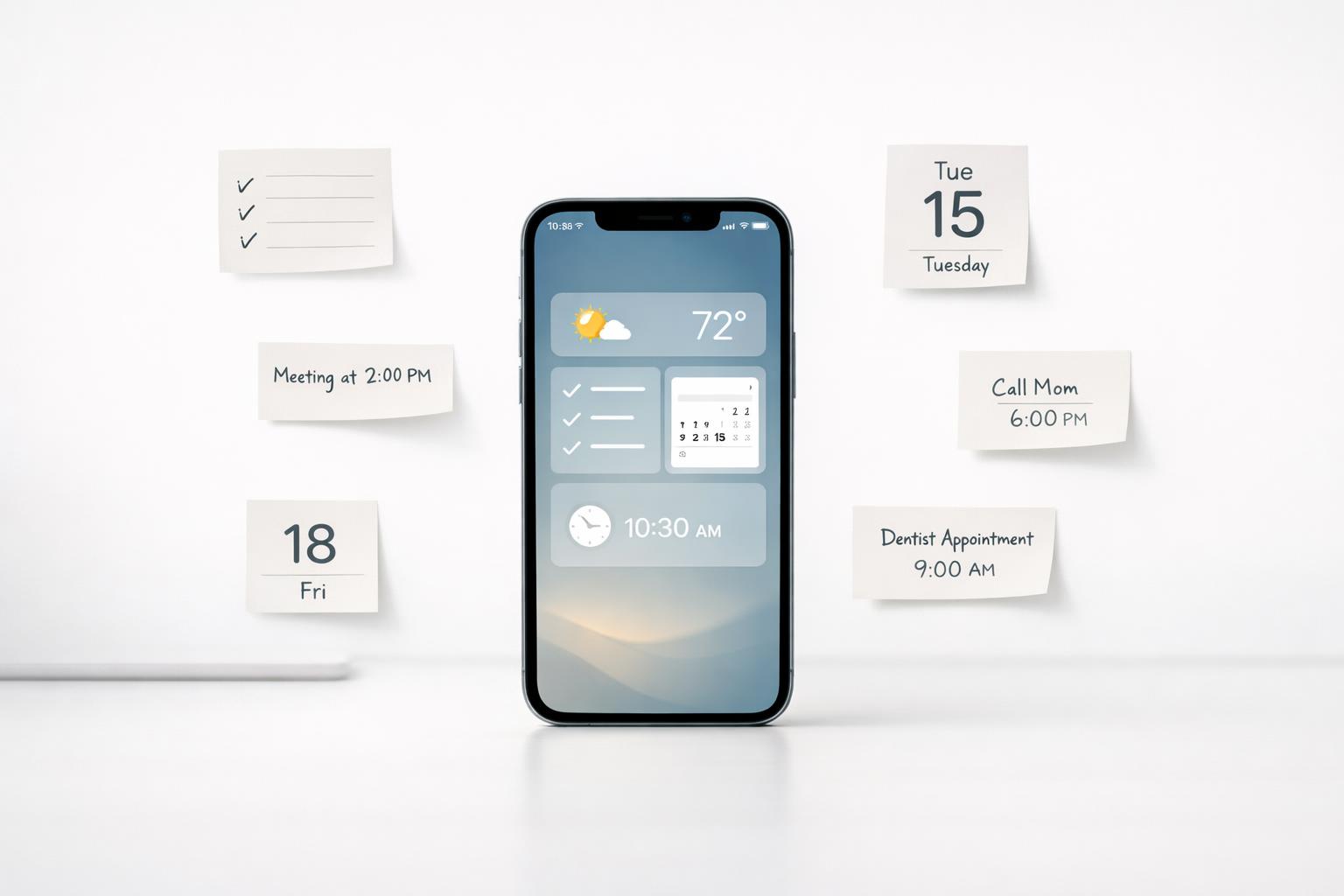
Quick answer: To stay organized on iPhone, you need fewer inputs, not more apps: one capture place for anything you need to remember, a simple structure for work and personal life, a home screen that only shows what you actually use, and notification rules that protect your attention. For most people, the best setup is Apple Reminders for fast capture and scheduling, Calendar for time commitments, a small number of widgets and dock apps, and a weekly review to clean up loose tasks before they become mental clutter.
TL;DR
- Use one trusted capture system. If a task lives in texts, notes, email, and your head at the same time, you are not organized.
- Keep your iPhone home screen minimal: daily-use apps on page one, everything else in the App Library or a few folders.
- Build your task system around lists, tags, due dates, and recurring reminders in Apple Reminders. Apple supports lists, tags, subtasks, templates, shared lists, and location/time alerts.
- Turn off or limit nonessential notifications and use Focus/Do Not Disturb when you need uninterrupted work.
- Review your system once a week. Organization fails when capture is easy but maintenance never happens.
Start with the right definition of “organized”
A lot of people think being organized on iPhone means color-coded folders, a perfect wallpaper, and a clever widget stack. That can help a little, but it misses the real problem. Most disorganization on a phone comes from three things:
- Too many places where information enters your life
- Too many visual distractions competing for attention
- No routine for deciding what matters now
If your iPhone is where work messages, personal reminders, shopping lists, appointments, and random ideas all arrive, then organization is really about reducing friction between capture and action.
That is why the best iPhone setup is usually boring. You want a system that answers four questions quickly:
- What do I need to do?
- When do I need to do it?
- What can wait?
- Where should this new thing go?
Apple’s built-in tools are stronger than many people realize. Reminders can organize tasks with lists and tags, support subtasks and attachments, and trigger alerts by time or location (Use Reminders on your iPhone, iPad, or iPod touch - Apple Support). Shared lists can also assign reminders to other people. For many users, that is enough. If you outgrow it, there are apps built on top of Apple’s ecosystem or planners that pull tasks from many services into one place (The 6 best to-do list apps for iPhone in 2026 | Zapier).
The point is not to find the perfect app. Even app reviewers who test many options argue that the “perfect” to-do app probably does not exist, only the one that fits you right now (5 Simple Tips for Organizing the Apps on Your iPhone). That is the right mindset.
A practical iPhone organization setup checklist
If you want the fastest path from messy to usable, set things up in this order: (Organize reminders on your iPhone or iPad - Apple Support)
- Choose one capture inbox. Make Apple Reminders your default task capture place, then add the Reminders widget to your first screen so new tasks are always one tap away.
- Create five lists. Set up
Inbox,Today,Work,Personal, andSomeday/Maybe. If you manage errands or shared family tasks, add those only after the core five are working. - Turn on only useful reminder features. Add a few recurring reminders, one or two tags like
@callsor@errands, and avoid assigning due dates unless something is truly due. - Reset page one. Keep only daily-use apps there. A simple example: Dock = Phone, Messages, Calendar, task app; first page = Mail, Safari, Notes, Camera, Maps, Photos, and one task/calendar widget.
- Move everything else off the main screen. Remove rarely used apps from page one, group a few low-frequency apps into folders like Finance or Travel, and rely on App Library or Spotlight for the rest.
- Configure Focus modes in practice. Create at least two: Work and Personal. In Work Focus, allow only key people, Calendar, and task reminders; hide distracting home screen pages if helpful. In Personal Focus, allow family, health, and home apps, but mute work chat and email.
- Do a 15-minute cleanup pass. Delete unused apps, unsubscribe from noisy mail you never read, clear screenshots and duplicate photos, and move important files into a small folder structure such as Personal, Work, and Receipts.
How should you organize your iPhone home screen?
Your home screen should reduce decisions, not create them. The simplest useful rule is this: page one is for apps you use every day, and only those apps. That advice shows up often because it works.
A practical setup looks like this:
- Dock: 4 core actions, such as Phone, Messages, Calendar, and your task app
- First page: only daily-use apps, maybe 8–12 total
- Widgets: one calendar/tasks widget, maybe one weather or habit widget
- Everything else: App Library, search, or a small number of folders
The App Library gives you a built-in way to avoid endless manual app sorting (Organize reminders on your iPhone or iPad - Apple Support). And Spotlight Search is often faster than hunting through pages, especially if you already know the app or note you want. It can do more than app search, including broader device and web search functions.
Two common mistakes make iPhone organization worse:
- Too many folders. Folders can help for low-frequency apps, but if every page is folders inside folders, you have just hidden clutter.
- Too many widgets. Widgets are useful when they save taps. They are harmful when they become decoration that pushes important apps off-screen.
If you want a simple rule for arranging apps, use thumb reach and frequency. Put your most-used apps in the dock or lower part of the first page for easier one-handed access. Then remove anything from page one that you do not use almost daily (How to Organize iPhone Apps: Tips and Tricks - Your Life Well Organized).
A clean home screen does not make you productive by itself. It just stops your phone from fighting you every time you unlock it.
What is the best task and reminder system on iPhone?
For most people, the best iPhone organization system starts with Apple Reminders because it is fast, built in, and deeply integrated across Apple devices. If iCloud Reminders is enabled, your reminders stay updated across your Apple devices.
The key is to use Reminders as a system, not a dumping ground.
A simple structure that works
Use these lists:
- Inbox — everything you capture quickly
- Today — what must happen today
- Work — project and task commitments
- Personal — life admin, errands, family
- Someday/Maybe — ideas that are not actionable now
This mirrors a common capture-first approach: get tasks out of your head immediately, then organize them later during a review. Practical Reminders workflows often recommend an Inbox list for exactly this reason.
Then add these features:
- Tags for context, such as
@calls,@errands,@waiting,@deepwork - Due dates only when something is truly due
- Priority sparingly, for the few tasks that really deserve it
- Recurring reminders for bills, routines, and maintenance
- Subtasks for multi-step items
- Templates for repeatable lists like travel, weekly reset, or meeting prep
Apple explicitly supports organizing reminders with tags and using templates to save and reuse lists. It also supports grocery lists that automatically categorize items (How to Organize iPhone Apps: Tips and Tricks - Your Life Well Organized).
The biggest mistake is turning every intention into a due date. If everything is due today, nothing is meaningful. Keep your calendar for appointments and time-specific commitments. Keep Reminders for tasks. That separation reduces stress.
If Apple Reminders feels too basic, there are stronger task apps for iPhone, including options that extend Apple Reminders with more advanced views and filters, and planner-style apps that consolidate tasks from other services. But start simple first. Complexity should solve a real problem, not just satisfy the urge to optimize.
How do you reduce clutter from notifications, messages, and inputs?
A well-organized iPhone is not just visually tidy.
Notifications are one of the fastest ways to destroy any system because they constantly re-prioritize your day for you. The fix is straightforward: keep notifications for communication, time-sensitive alerts, and true reminders; disable them for almost everything else.
Focus or Do Not Disturb modes are especially useful when you need uninterrupted work. Apple’s built-in mode can silence calls, alerts, and notifications while your device is locked, and you can allow calls from selected contacts (25 iPhone Productivity Tips That Will Change Your Life | iPhoneMedic). Even if the interface has evolved over time, the principle remains the same: define who and what can break through.
A practical notification reset:
- Leave on: calls from key people, calendar alerts, task reminders, banking/security alerts
- Turn off or summarize: shopping apps, social apps, news, games, promotional email
- Review badges: if red badges create anxiety, disable them for nonessential apps
- Use scheduled checks: process email and chat at set times instead of continuously
You should also reduce the number of places where tasks arrive. If someone texts you a task, move it into your task system. If you think of something while walking, capture it immediately. If you leave tasks buried in messages.
This is where voice capture can help. Speaking a task is often faster than typing, especially when you are in motion or switching contexts. That matters because organization systems fail when capture is inconvenient. The less friction there is between “I need to remember this” and “it is safely stored,” the more consistent you will be.
If you use multiple life areas—work, home, health, finances, relationships—try to capture them all into one system, then sort later. Separate apps for every category can feel organized, but they often create fragmentation instead.
What weekly habits keep your iPhone organized long term?
The difference between a clean setup and a reliable system is review.
You can organize your iPhone perfectly on Sunday and still feel overwhelmed by Thursday if you never reset it. A short weekly review is what keeps your phone from becoming a storage bin for unfinished intentions.
Here is a simple 20-minute review:
- Empty your inbox
- Process loose tasks in Reminders
- Move message-based to-dos into your task system
-
Clear random notes that should become actions or be deleted
-
Check your calendar
- Look back for anything unfinished
-
Look ahead for deadlines, appointments, and prep work
-
Review active lists
- Work
- Personal
- Errands
- Waiting-for items
-
Recurring tasks
-
Clean your home screen
- Remove apps you installed “just to try”
- Delete or offload what you do not use
-
Re-check widgets and badges
-
Choose your next-week priorities
- Pick 3–5 meaningful outcomes, not 25 vague intentions
This habit matters more than any app choice. Weekly review practices are widely recommended in practical Reminders workflows because they prevent missed deadlines and keep lists trustworthy.
There is also a psychological benefit: when you trust your system, your brain stops trying to remember everything at once. That is the real payoff of organization. Not aesthetic neatness—reduced mental load.
If you want to go one step further, organize your tasks by life area, not just by urgency. That gives you a more honest picture of whether work is crowding out health, relationships, or personal admin. A standard to-do list often hides that imbalance.
When should you use a dedicated productivity app instead of Apple’s defaults?
Apple’s built-in apps are enough for many people. But they stop being enough when your life has more moving parts than a basic list can comfortably hold.
You should consider a dedicated productivity app if:
- You manage tasks across several life areas and want them visible in one system
- You need project views, Kanban boards, or stronger workflow stages
- You want faster capture, including AI voice input
- You want tasks, reminders, focus sessions, and reflection connected together
- You use both iPhone and Mac heavily and want a more intentional planning environment
This is where a life-management app can be more useful than a plain to-do list. Instead of treating every task as equal, it can organize responsibilities by area—work, health, finances, relationships, home—and help you see the tradeoffs. That is often what busy people are actually missing.
For Apple users, a native app matters too. Native iPhone and Mac apps usually feel faster, fit better with system behaviors, and reduce friction in daily use. Opinion, but a strong one: if your organization system feels clunky on mobile, you will stop using it when life gets busy.
If you want a more holistic setup, malife is built for exactly that kind of use: tasks, projects, reminders, focus, and journaling in one Apple-native system organized around life areas rather than a generic task pile. It is also completely free for now. That makes it reasonable to test without committing your whole workflow on day one.
Bottom line
If you want to stay organized on iPhone, do not start by redesigning everything. Start by making three changes: one capture system, one clean first screen, and one weekly review. That alone fixes most of the chaos.
If Apple Reminders and Calendar are enough, use them well. If your life is more complex and spread across multiple roles, use a dedicated system that keeps tasks, focus, and life areas together.
If you want that kind of setup on iPhone and Mac, download malife and try organizing your responsibilities in one place. - How best iPhone productivity apps improve life-context planning - Common smart voice notes pitfalls