
All in one planner checklist for busy professionals
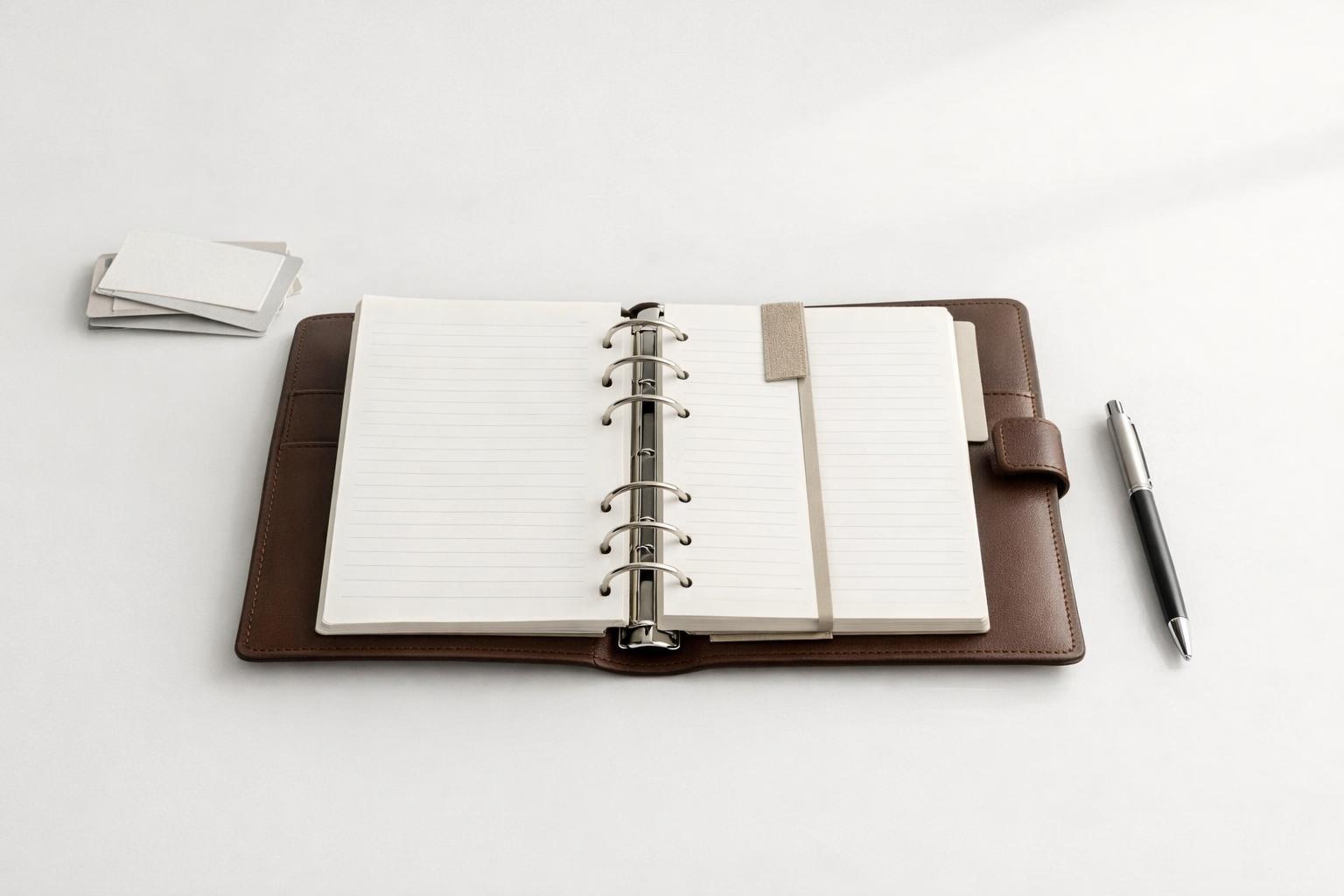
An all in one planner should help busy professionals capture, organize, and review commitments in one trusted system without adding extra friction.
Quick answer: An all-in-one planner checklist for busy professionals should do one job well: keep your commitments, priorities, and next actions in one trusted system instead of scattering them across notes, calendars, chat apps, and memory. The most useful setup is not a giant template. It is a short checklist that covers life areas, active projects, this week’s priorities, today’s must-do tasks, reminders, and a quick review habit. If your planner cannot help you capture tasks fast, see work and personal responsibilities together, and decide what matters today, it is not really all in one.
TL;DR
- A useful all-in-one planner combines capture, organization, scheduling, reminders, and review in one place.
- Busy professionals usually need to track life areas, projects, tasks, deadlines, and follow-ups together, not just a daily to-do list.
- The best checklist is short enough to use every day: inbox, projects, calendar, top priorities, reminders, and weekly review.
- If you are on Apple devices, a native iPhone and Mac setup can reduce friction and make the system easier to trust.
What should an all-in-one planner actually include?
Most planner advice fails because it confuses “more sections” with “better planning.” Busy professionals do not need a decorative system. They need a planner that answers a few practical questions quickly:
- What do I need to do?
- When does it need to happen?
- What matters most today?
- What am I forgetting?
- How do work and personal responsibilities fit together?
That is why an all-in-one planner should include six core parts.
1. A capture inbox You need one place to dump tasks, ideas, errands, and follow-ups the moment they appear. This follows the basic logic behind Getting Things Done: capture open loops before they stay in your head.
2. Life areas or categories A planner that only tracks work tasks often breaks down fast. Real life includes health, family, finances, admin, and personal goals. Many people specifically look for one tool to manage freelance work, side projects, and personal life together.
3. Projects and next actions “Launch website” is not a task. “Send homepage copy to designer” is. Your planner should let you break projects into clear next steps.
4. Calendar visibility Tasks and time commitments affect each other.
5. Reminders and recurring items Bills, medication, weekly planning, birthdays, and follow-ups should not depend on memory. Natural-language reminders are increasingly common in modern planning apps.
6. A review rhythm Even the best planner becomes clutter if you never reset it. Weekly review is what keeps the system current.
This is also why many professionals outgrow simple task lists. A standard to-do app may capture tasks, but it often does not give enough context across life areas, projects, and reflection.
The practical all-in-one planner checklist
If you want a checklist you can actually use, keep it compact. The goal is not to fill every box. The goal is to make sure nothing important slips.
Daily checklist
- Empty your inbox or capture list
- Check today’s calendar events and hard deadlines
- Choose 1 to 3 top priorities
- Confirm any time-sensitive reminders or follow-ups
- Review active tasks by context or life area
- Start with the most important task, not the easiest one
That “most important task first” approach shows up in many planner systems and apps because it helps reduce reactive work.
Weekly checklist
- Review all active projects
- Move stalled tasks forward by defining the next action
- Check upcoming deadlines for the next 7 to 14 days
- Reschedule or drop low-value tasks
- Add personal responsibilities you may be ignoring
- Clear completed items and archive irrelevant notes
- Decide next week’s top priorities
Monthly checklist
- Review goals across work and personal life
- Check recurring obligations: bills, appointments, maintenance
- Look for overloaded areas and neglected areas
- Adjust projects based on current capacity
- Review notes or journal entries for patterns
This is where many paper planners and digital planners differ. Some professional planners emphasize daily, weekly, and quarterly planning together (Digital Planner in Numbers - Apple Education Community) (Top 8 Best Planners for Professionals in 2026 – Boss Personal Planner). Others focus more on reflection prompts and intentional living. Neither is automatically better. If you are busy, the best checklist is the one you will still use on a Wednesday afternoon when your day goes sideways.
How to set up one planner for work and personal life without making a mess
The biggest fear with an all-in-one planner is understandable: if everything goes into one system, won’t it become chaotic?
It will, unless you separate by structure, not by app.
A clean setup usually looks like this:
Use life areas as your top level
Examples: - Work - Personal admin - Health - Family/relationships - Finances - Home - Learning
This gives you a way to scan your life without mixing everything into one flat task list.
Use projects underneath each area
Examples: - Work → Q3 client proposal - Health → physical therapy routine - Finances → tax prep - Home → kitchen repairs
Projects create containers for related tasks.
Keep tasks small and visible
Each task should be actionable. If it takes multiple steps, it is probably a project. This matters because vague tasks create procrastination.
Separate hard dates from flexible tasks
A meeting at 2 PM belongs on the calendar. “Draft proposal outline” may belong in your task list unless you are intentionally time-blocking it.
Use reminders for commitments, not everything
If every task has a reminder, reminders become wallpaper. Reserve alerts for things that truly need a prompt: calls, deadlines, medication, pickups, renewals, and follow-ups.
Add a quick reflection layer
This is the part many planners miss. If you keep short notes or journal entries about what is working, what is draining you, or what keeps slipping, your planner becomes more than a task bucket. It becomes a decision tool.
Sample setup: One completed planner you could copy
Here is a simple example for a busy professional using one app across iPhone and Mac.
Life areas - Work - Health - Home - Finances - Relationships
Active projects - Work → Q3 client proposal - Home → Renew car registration - Health → Resume 3x weekly workouts - Finances → Submit expense reimbursements
Today - Top 3: send proposal draft, book dentist appointment, submit expenses - Calendar: 9:00 team standup, 1:00 client call, 4:30 school pickup - Reminders: pay credit card Friday, follow up with designer Thursday
Daily review: 10 minutes - Clear inbox - Check calendar - Pick top 3 - Confirm reminders - Start first priority
Weekly review: 20 to 30 minutes - Review each life area once - Update project next actions - Check the next 14 days - Delete, defer, or delegate stale tasks - Add any personal tasks that got buried under work
Implementation flow in malife 1. Create your life areas first. 2. Add 1 to 2 active projects under each area. 3. Brain-dump every open loop into the inbox. 4. Turn vague items into next actions. 5. Add deadlines and only the reminders that truly need alerts. 6. Each morning, choose 1 to 3 priorities. 7. Each week, do one reset before planning the next seven days (The 4 Best Planners of 2026: Roterunner, Hobonichi, Cloth & Paper | WIRED).
A common mistake is combining work and personal tasks in one undifferentiated list. Keep one system, but use separate life areas so work does not hide bills, health, or family commitments.
This is one reason some people prefer a single digital system over separate notebooks, calendars, and lists. A digital planner can combine tasks, schedules, and notes in one workflow, while still letting you organize across multiple sheets, tabs, or sections. For Apple users especially, a native iPhone and Mac setup can lower friction compared with patching together unrelated tools (Getting Things Done: A Simple Step-By-Step Guide).
Digital vs paper: Which kind of planner works better for busy professionals?
There is no universal winner here. The better option is the one that matches how you think and how fast your days change.
Paper planners still have real strengths. Many people find writing by hand more engaging than typing, and some reporting has pointed to research suggesting handwritten planning can increase engagement with tasks. Paper also creates useful limits. You cannot endlessly reorganize, over-tag, or build a complicated dashboard instead of doing the work.
But paper has tradeoffs: - Harder to reschedule quickly - No automatic reminders - Limited search - Awkward for recurring tasks - Difficult to sync across devices or contexts
Digital planners are usually better when your schedule changes often, you manage many responsibilities, or you need reminders and quick capture. Many modern planner apps now combine to-do lists, scheduling, habits, and AI-assisted planning in one place. Some also support voice input, which matters when you are moving between meetings, commuting, or trying to capture something before you forget it (I Spent Years Reporting on Planners to Find the Best of the Best).
There are also niche planners built for specific audiences. For example, Planit is positioned as a study planner for students, teachers, schools, colleges, and universities rather than a broad professional life-management tool. That is useful context: “all in one” often means different things for different users. A student may need timetables and exam countdowns. A busy professional may need projects, reminders, calendar visibility, and personal admin in the same system.
My view: if your life changes hour by hour, digital usually wins. If you think best on paper and your workflow is stable, paper can still work. If you want one system across iPhone and Mac, digital is the practical choice.
How to choose the right all-in-one planner for your workflow
Do not start by asking which planner is “best.” Start by asking where your current system fails.
If tasks are scattered, you need better capture. If you miss deadlines, you need reminders and calendar visibility. If you feel busy but unfocused, you need clearer daily priorities. If work takes over everything, you need life-area planning. If you keep restarting your system, you need less complexity.
Use this short decision filter:
Choose a planner that lets you:
- Capture tasks in seconds
- Organize by project and life area
- See deadlines and calendar commitments together
- Set recurring reminders
- Review your week without friction
- Access the same system wherever you work
Then test it against real life for two weeks.
A good planner should survive: - An interrupted morning - A rescheduled meeting - A personal errand added mid-day - A forgotten follow-up - A new project arriving unexpectedly
If it only works when you have 30 quiet minutes and perfect discipline, it is not a good planner for a busy professional.
This is where all-in-one apps can be especially useful. Instead of splitting your life between a notes app, a task app, a calendar, and a journal, you can keep planning in one place. For Apple users, malife is built around that idea: organizing tasks, projects, reminders, focus, and journaling across life areas on iPhone and Mac. That matters if you want a planner that reflects your whole life, not just your work queue.
A final point: free matters. Many planning tools charge subscriptions or lock useful features behind upgrades. If you are testing a new system, lower commitment makes adoption easier.
Bottom line
A good all-in-one planner checklist is not about squeezing your life into a perfect template. It is about building one reliable place to capture, organize, and review what matters across work and personal life. For busy professionals, the essentials are simple: fast capture, clear priorities, reminders, project structure, and a weekly reset.
If your current setup feels scattered, simplify before you optimize. Choose one system you can trust, use it daily, and make sure it reflects your whole life, not just your inbox.
If you want that kind of setup on iPhone and Mac, download the app.
A good all in one planner should give you one reliable place to capture, organize, and review what matters across work and personal life.