
Getting started with a task board app for personal planning
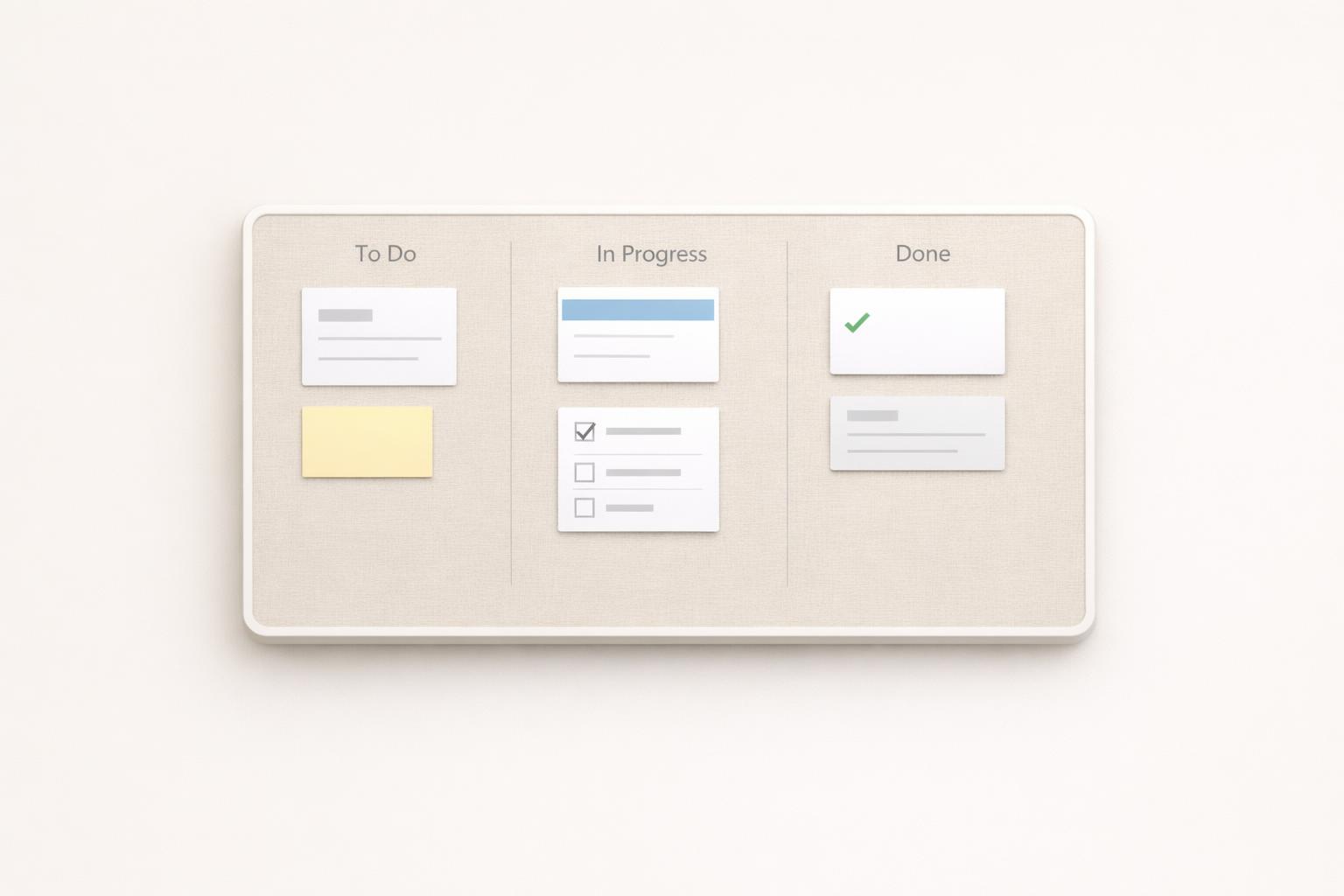
Quick answer: A task board app can work very well for personal planning if you keep it simple: create a few columns that reflect action stages, organize tasks by life area or project, limit what sits in “doing,” and review the board often enough that it stays trustworthy. The mistake most people make is building a board that looks impressive but is too detailed to maintain. For personal use, the best setup is usually one lightweight board for your active life, not a complicated project-management system.
TL;DR
- Start with a basic board: Inbox, Next, Doing, Waiting, Done is enough for most people.
- Organize tasks by life area or project, not by dozens of tiny categories.
- A board helps because it makes work visible and reduces the feeling of juggling everything at once.
- Your board only works if capture is fast, due dates are used sparingly, and you review it weekly.
- If you use Apple devices, a native app that combines boards, reminders, and life areas can be easier to maintain than splitting planning across.
Why use a task board app for personal planning?
A task board is just a visual way to manage commitments. Instead of storing everything in one long list, you move tasks through stages. That sounds small, but it changes how planning feels. A list answers, “What exists?” A board answers, “What needs attention now?”
That matters for personal planning because most people are not managing one stream of work. They are balancing work, admin, health, family, finances, errands, and longer-term goals. A board gives those responsibilities shape. You can see what is waiting, what is active, and what is finished without mentally re-sorting a giant list every time you open your app.
This visual approach is one reason Kanban-style boards remain popular (Yes You Kanban: The Complete Guide to Boards-Based Project Management). They let you divide work into manageable pieces and see current focus, what comes next, and what has already been completed (The 8 Digital Productivity Tools Everyone Should Adopt). Trello describes boards as a simple visual layout for tracking task progress in one place (Set & manage Google Tasks with Google Assistant - Android - Google Assistant). Todoist makes a similar case for organizing both work and life tasks in one system (Todoist | A To-Do List to Organize Your Work & Life).
For personal planning, the real benefit is not novelty. It is reduced friction. When your board is set up well, you stop asking:
- What should I do next?
- What am I forgetting?
- Which responsibilities are getting ignored?
- What is already in progress that I should finish first?
A board will not make you disciplined by itself. But it can make good decisions easier and bad planning habits more obvious.
What should your first personal task board look like?
Your first board should be boring. That is a good thing.
Most people overbuild. They create separate boards for every goal, ten labels, six priority levels, and custom workflows they never maintain. A better starting point is one board with a small number of columns that match how you actually move through life.
A practical default looks like this:
- Inbox — quick capture, unprocessed tasks
- Next — tasks you could realistically do soon
- Doing — what you are actively working on now
- Waiting — blocked, delegated, or date-dependent items
- Done — completed tasks
That setup works because each column answers a different question. Inbox says, “What have I captured?” Next says, “What is available?” Doing says, “What has my attention?” Waiting says, “What can’t move yet?” Done gives closure.
If you want one more layer of structure, use tags or sections for life areas such as:
- Work
- Personal admin
- Health
- Home
- Relationships
- Finances
This is usually better than making a separate board for every area. One unified board helps you see tradeoffs across your whole life, which is the point of personal planning.
Keep due dates limited to tasks that are truly time-bound. If every card has a due date, due dates stop meaning anything. Use them for appointments, deadlines, bills, renewals, and follow-ups. For everything else, let the board stage do the work.
Also keep “Doing” intentionally small. If you put 14 tasks there, it is not a focus column anymore. It is just another backlog. A visual board is most useful when it exposes overload instead of hiding it.
How do you set up a board without turning it into another chore?
The easiest way to fail with a task board app is to make maintenance harder than capture. If adding and organizing tasks takes too much effort, you will avoid the system and go back to mental tracking.
The setup should support three actions: capture, clarify, and review.
Capture quickly
You need a fast way to get tasks out of your head. That can be typing, voice input, or adding tasks from other tools. Google Tasks, for example, emphasizes quick capture across devices and lets users add details, subtasks, due dates, and notifications (Learn about Google Tasks - Google Tasks Help). Google Assistant can also create and edit tasks by voice.
The broader point is not that you need those exact tools. It is that your board app should make capture nearly frictionless. If you often think of tasks while walking, driving, or between meetings, voice capture matters. If you work across phone and desktop, sync matters.
Clarify in batches
Do not fully organize every task the moment it appears. Dump it into Inbox first. Then once a day, or at least a few times a week, process Inbox:
- Is this actionable?
- What is the next visible step?
- Does it belong to a project or life area?
- Does it need a date?
- Should it go to Next, Waiting, or someday elsewhere?
This keeps capture fast and planning deliberate.
Review on a schedule
A board becomes cluttered when nobody resets it. A short weekly review is usually enough:
- Clear Inbox
- Move stale items out of Doing
- Check Waiting items
- Add upcoming deadlines
- Pick a few priorities for the next week
Harvard Business Review has argued that most people do better with a small number of tools and a workflow that fits how they actually work, rather than endlessly customizing systems. That applies here. The best board is the one you will still trust in three months.
Quick answer: Your first board in 6 steps
If you are starting from scratch, build one board and populate it in under 15 minutes:
- Create one board called “Life” or “This Week.”
- Add five columns: Inbox, Next, Doing, Waiting, Done.
- Pick 3 to 5 life areas as tags or sections: Work, Home, Health, Personal Admin, Finances.
- Add 8 to 12 real tasks from your current list. Example cards: “Book dentist appointment,” “Send invoice to client,” “Buy groceries,” “Schedule car service,” “Review credit card statement,” “Text Mom back.”
- Place them by status, not importance. For example:
- Inbox: “Renew passport,” “Plan weekend trip”
- Next: “Buy groceries,” “Review credit card statement,” “Text Mom back”
- Doing: “Send invoice to client”
- Waiting: “Schedule car service” if you already left a voicemail
- Done: one or two completed items for momentum
- Set only true dates and repeats. Give due dates to bills, appointments, and deadlines. For recurring tasks, create repeats only for routines you actually do, like “Take out trash every Thursday” or “Weekly budget check every Sunday.”
If you are migrating from a long to-do list, do not import everything. Move only active tasks first. If a task board feels excessive because most of your items are simple one-off reminders, a regular list may be the better tool.
How should you organize tasks across work and personal life?
This is where personal planning gets harder than team project management. You are not just tracking tasks. You are balancing roles.
A useful personal board should show your whole life without becoming chaotic. The simplest way is to separate tasks by context while keeping them visible in one place. That usually means one of these structures:
- By life area: work, health, home, finances, relationships
- By project: launch website, tax prep, apartment move, training plan
- By energy or context: deep work, errands, calls, admin
For most people, life areas are the best top-level structure because they reflect ongoing responsibility, not just temporary projects. Projects come and go. Life areas stay. If your app supports both, use life areas as containers and projects inside them.
This matters because personal planning fails when one area quietly disappears. A standard to-do list often gets dominated by urgent work tasks. A board organized around life areas makes neglect visible. If your health or finances column has been untouched for two weeks, that is useful information.
You also do not need every task on the board at once. Keep the board focused on active commitments. Archive completed projects. Hide someday/maybe ideas somewhere else. A board is for current planning, not permanent storage.
If you use calendar events alongside tasks, keep the distinction clear. Calendar is for things that happen at a specific time. Board tasks are for things that need to move forward. Mixing those carelessly creates noise. Some apps make this easier by showing calendar events alongside tasks, which can help with planning weekly workload without turning every task into a calendar block.
The goal is not perfect categorization. It is enough structure to answer: what matters, what is active, and what is being ignored?
What mistakes make personal task boards stop working?
Most abandoned boards fail for predictable reasons.
Too many columns
If you need a legend to understand your own workflow, it is too complex. Personal planning rarely needs “Backlog,” “Ready,” “In progress,” “Review,” “Blocked,” “Scheduled,” “Deferred,” and “Completed.” Keep only stages that change decisions.
Too many active tasks
Boards are useful because they reveal limits. If “Doing” contains everything, you lose that benefit. A small in-progress limit forces prioritization and reduces context switching. This is opinionated advice, but it is practical.
Using the board as storage, not a decision tool
A board should help you choose what to do. If it becomes a museum of every obligation you have ever had, it stops being useful. Archive aggressively.
Confusing projects with tasks
“Get healthy” is not a task card. “Book annual physical” is. “Fix finances” is not a task card. “Review credit card statement” is. Cards should represent visible next actions or clearly bounded outcomes.
Overusing due dates
When everything is urgent, nothing is. Reserve dates for real commitments. Use the board to manage sequence and status.
No review habit
Even a great board decays without maintenance. Waiting items go stale. Done piles up. Inbox becomes a junk drawer. A 15- to 30-minute weekly review prevents most of this.
Splitting your system across too many apps
This is a common modern problem. One app for work tasks, another for reminders, another for notes, another for journaling, another for calendar, and voice capture somewhere else. HBR has noted that most people benefit from adopting the smallest number of tools necessary to work efficiently. For personal planning, fewer handoffs usually means more consistency.
That is one reason some people prefer a life-management app over a pure task app. If your board, reminders, focus sessions, and reflection live together, it is easier to keep the system current.
How do you make a task board app part of a real planning routine?
A board app helps only when it supports a repeatable routine. You do not need a complicated productivity method. You need a few stable behaviors.
A simple routine looks like this:
Daily - Capture tasks as they appear - Check the board once in the morning - Move 1 to 3 tasks into Doing - Clear small tasks when possible - Update Waiting when someone replies or a date changes (TaskBoard: Task Management - App Store - Apple)
Weekly - Empty Inbox - Review each life area - Remove stale tasks - Choose priorities for the coming week - Check upcoming deadlines and appointments
Monthly - Archive completed projects - Rebalance neglected areas - Ask whether your board structure still matches your life
This is also where reflection helps. A lot of planning problems are not task problems. They are pattern problems: overcommitting, avoiding ambiguous work, neglecting personal admin, or letting work consume every visible slot. Journaling can help you notice those patterns over time, especially if it is connected to the same system where your tasks live.
If you are on iPhone or Mac, a native app can make this routine easier simply because it is faster to open, capture into, and revisit throughout the day. That is not a universal rule, but lower friction matters.
For example, malife is designed around life areas rather than just flat task lists, which makes it a better fit for people trying to plan across work and personal responsibilities in one place. It also combines task management, reminders, focus support, and AI journaling in a native Apple experience. That kind of setup can be useful if your current problem is not lack of features, but lack of coherence.
The key is still the same: keep the board simple enough that you will actually use it.
Bottom line
A task board app is a strong starting point for personal planning if you use it as a lightweight decision system, not a perfect model of your life. Start with a few columns, organize by life area or project, keep active work limited, and review the board every week. If your current setup feels scattered, choose a tool that lets you capture quickly and see work and personal responsibilities together.
If you want that kind of all-in-one structure on Apple devices, download the app and try building a simple personal board in malife.